
Preview & Compare
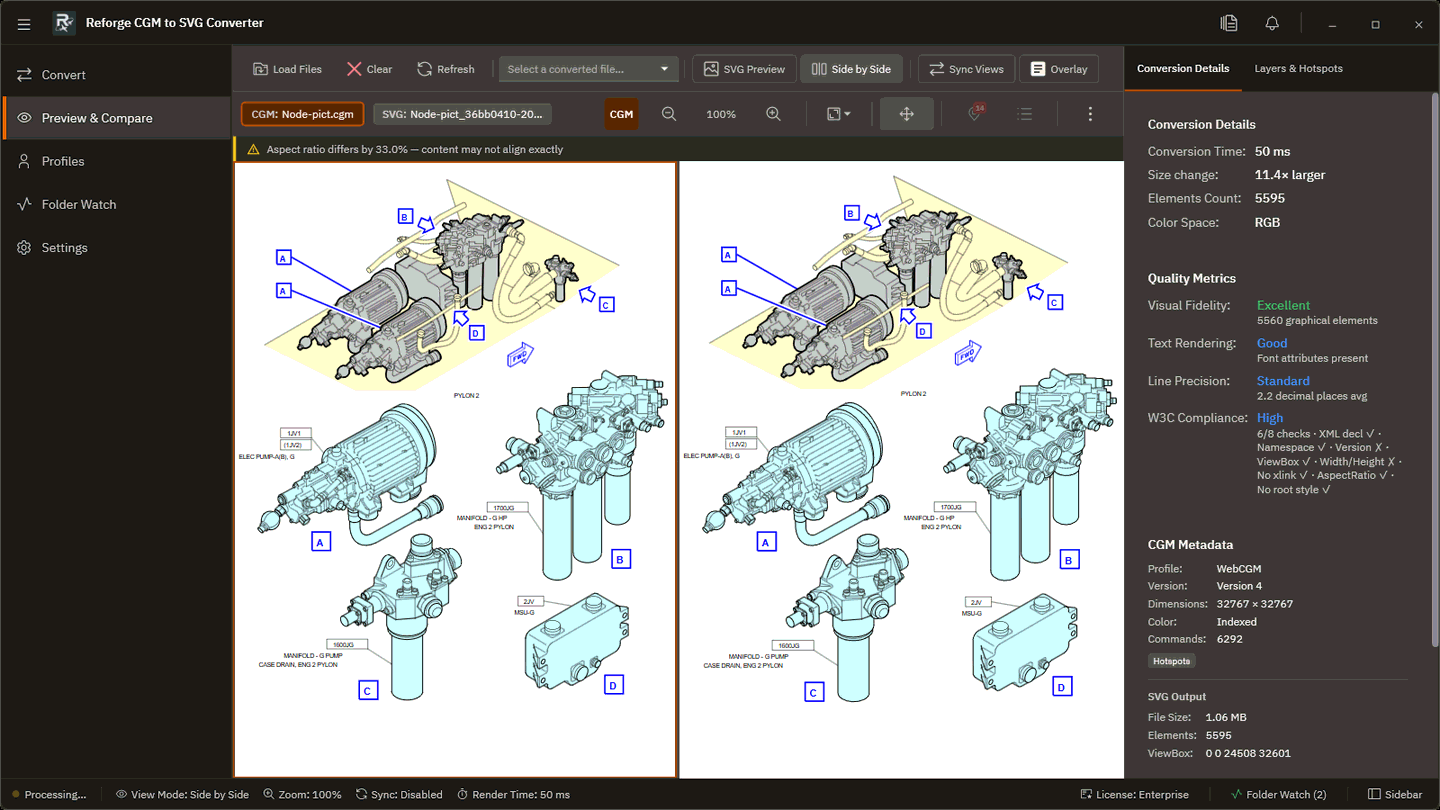
Interactive visual comparison between the source CGM and the converted SVG.
WebView2 required
This tab requires the Microsoft WebView2 runtime. If it appears blank, see Installing WebView2.
View modes
| Mode | Description |
|---|---|
| SVG Preview | View the converted SVG on its own |
| Side by Side | Source CGM and converted SVG side by side |
| Native Compare | Raw CGM rendered alongside the converted SVG |
| Overlay | Converted SVG overlaid on source with adjustable transparency |
| Difference | Highlights visual differences between source and output |
Navigation
| Action | Method |
|---|---|
| Zoom in / out | Mouse wheel |
| Pan | Click and drag |
| Reset zoom | Double-click the canvas |
In Side by Side and Native Compare modes, zoom and pan are synchronised by default. Toggle from the toolbar.
Hotspot inspection
Hover a hotspot to highlight it and show a tooltip with its name, ID and link target.
Click a hotspot to select it in the Layers & Hotspots panel, which opens in the sidebar and lists every hotspot on the drawing with its Application Structure name, a type pill, and its ID. The panel header carries the hotspot count, and the set can be copied or exported from there.
Hotspots are detected from the Application Structure the file declares
(webcgm:type="grobject"), so conformant WebCGM, S1000D and ATA output is
recognised without the ids needing any particular naming.
Canvas background
Toggle the canvas background from the toolbar:
- Checkerboard — useful for inspecting transparency
- Solid colour — cleaner for print-style output