
Profiles
The Profiles tab is where you pick an output preset, set the CGM input profile, and tune per-job settings. Reforge ships with seven built-in presets organized into three categories. The preset you pick becomes the starting configuration for the next conversion — the Convert tab’s sidebar lets you override individual knobs on top of it.
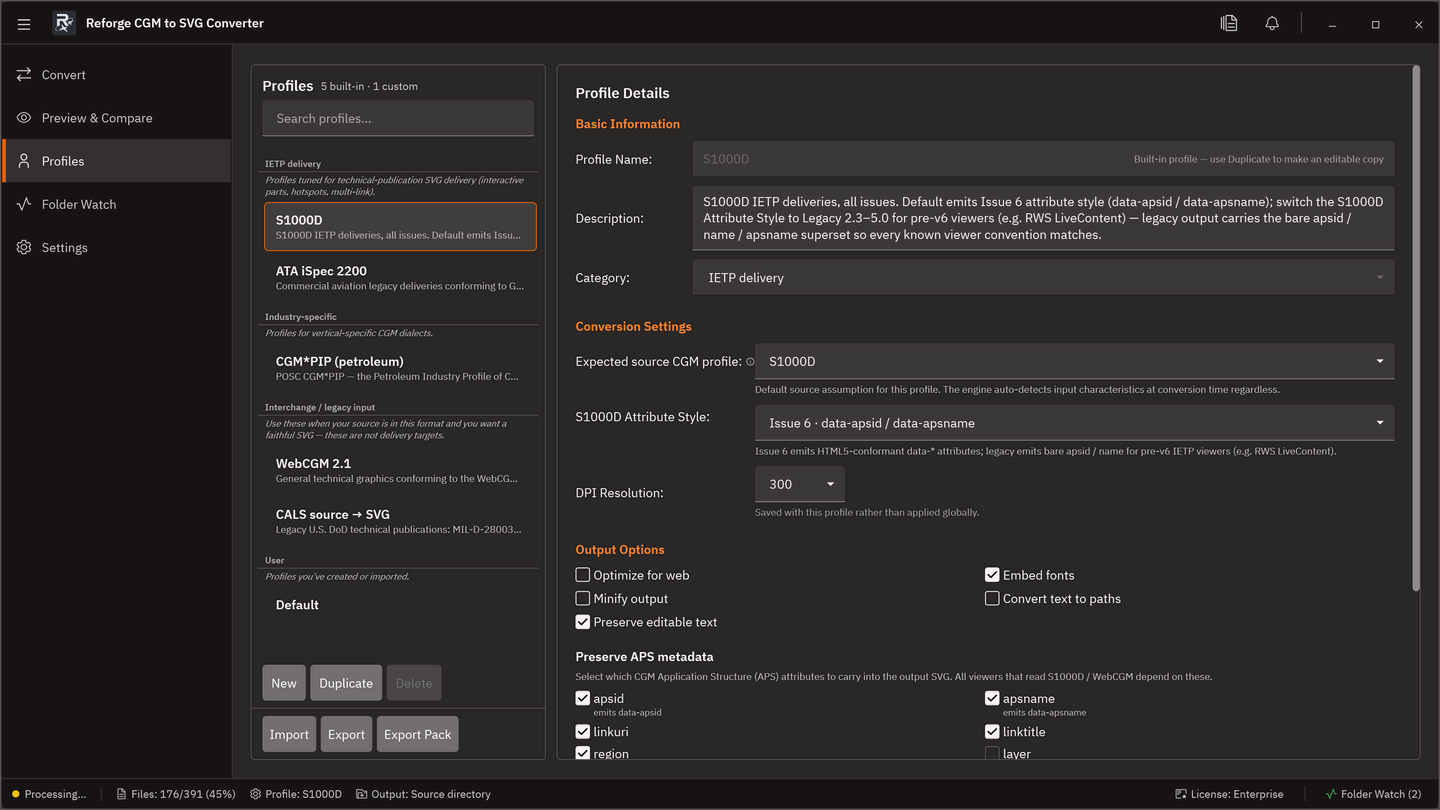
The seven built-in presets
Standards
| Preset | Category | Typical target |
|---|---|---|
| S1000D | Standards | Modern defence and civil aviation IETP deliveries (S1000D issues 2.3 – 6.0). |
| ATA iSpec 2200 | Standards | Commercial aviation deliveries conforming to GREXCHANGE V2.13. |
| WebCGM 2.1 | Standards | General technical graphics to the WebCGM 2.1 Intelligent Content profile. |
Geoscience
| Preset | Category | Typical target |
|---|---|---|
| CALS | Standards | Legacy U.S. DoD technical publications to MIL-PRF-28003. |
| PIP / CGGC | Geoscience | Seismic and well-log geoscience conversions. |
Output scenarios
| Preset | Category | Typical target |
|---|---|---|
| Default (balanced) | Output scenarios | Exploratory conversions when the delivery target is not yet known. |
| High Quality Print | Output scenarios | Fidelity-first SVG for print workflows (600 DPI, text as paths). |
Each preset sets a default DPI, hotspot encoding, region handling, APS preservation flags, companion-file mode, and validation behaviour. See Supported Profiles for the per-preset setting table.
CGM Profile dropdown
The Profiles tab also hosts the CGM Profile dropdown, which controls how Reforge interprets the input CGM file:
| Option | Use when |
|---|---|
| S1000D Issue 6 | File is part of an S1000D data module (v4 – v6). |
| ATA iSpec 2200 | Commercial aviation IETM source. |
| CALS (MIL-PRF-28003) | U.S. DoD deliverable. |
| CGM+ | European aerospace / NATO programme. |
| PIP / CGGC | Petroleum industry seismic or well-log source. |
CGM+ and PIP / CGGC were added in v0.6.0. Auto-detect remains the default on the Convert tab for mixed or unknown source libraries.
DPI ladder
Each preset sets a default DPI appropriate to its category, and the DPI dropdown exposes the full ladder for overrides:
| Preset | Default DPI | Typical ladder |
|---|---|---|
| S1000D | 300 | 150 / 200 / 300 / 400 / 600 |
| ATA iSpec 2200 | 300 | 150 / 200 / 300 / 400 / 600 |
| WebCGM 2.1 | 200 | 96 / 150 / 200 / 300 |
| CALS | 400 | 200 / 300 / 400 / 600 |
| PIP / CGGC | 400 | 200 / 300 / 400 / 600 |
| Default (balanced) | 300 | 150 / 200 / 300 / 400 / 600 |
| High Quality Print | 600 | 300 / 400 / 600 / 1200 |
Validate output checkbox
The Validate output against profile checkbox re-labels based on the selected CGM profile, because the available profile-specific validations differ:
| CGM profile | Checkbox label |
|---|---|
| S1000D | Validate output against S1000D 6.0 SVG profile |
| ATA iSpec 2200 | Validate output against ATA SVG profile |
| WebCGM 2.1 | Validate output against WebCGM 2.1 profile |
| CALS | Validate SVG well-formedness (no CALS-specific output profile exists) |
CALS disclosure
For CALS, the tooltip spells out what the toggle actually runs:
MIL-PRF-28003 defines CGM v1 constraints for input; there is no corresponding CALS SVG profile. When enabled, output is checked for SVG well-formedness and the absence of APS intelligence (which CALS does not specify).
For presets without a matching target SVG profile — PIP / CGGC, Default, High Quality Print — the checkbox is replaced by an inline caption:
Profile-specific SVG validation unavailable — no target output profile is defined for this scenario.
This keeps the UI honest: the toggle only appears when there is a real profile to validate against.
What next?
- Reference: Supported Profiles — per-preset setting tables and compliance notes.
- Convert — drop files, override per-job settings, and run.
- Folder Watch — watch conversions and review the log.